 DSH Desktop
Add files and organize source material
Add a document, confirm what was read and check the resulting analysis.
Before you start
Prepare your files and choose the workspace for the task. The steps below use a PDF as an example.
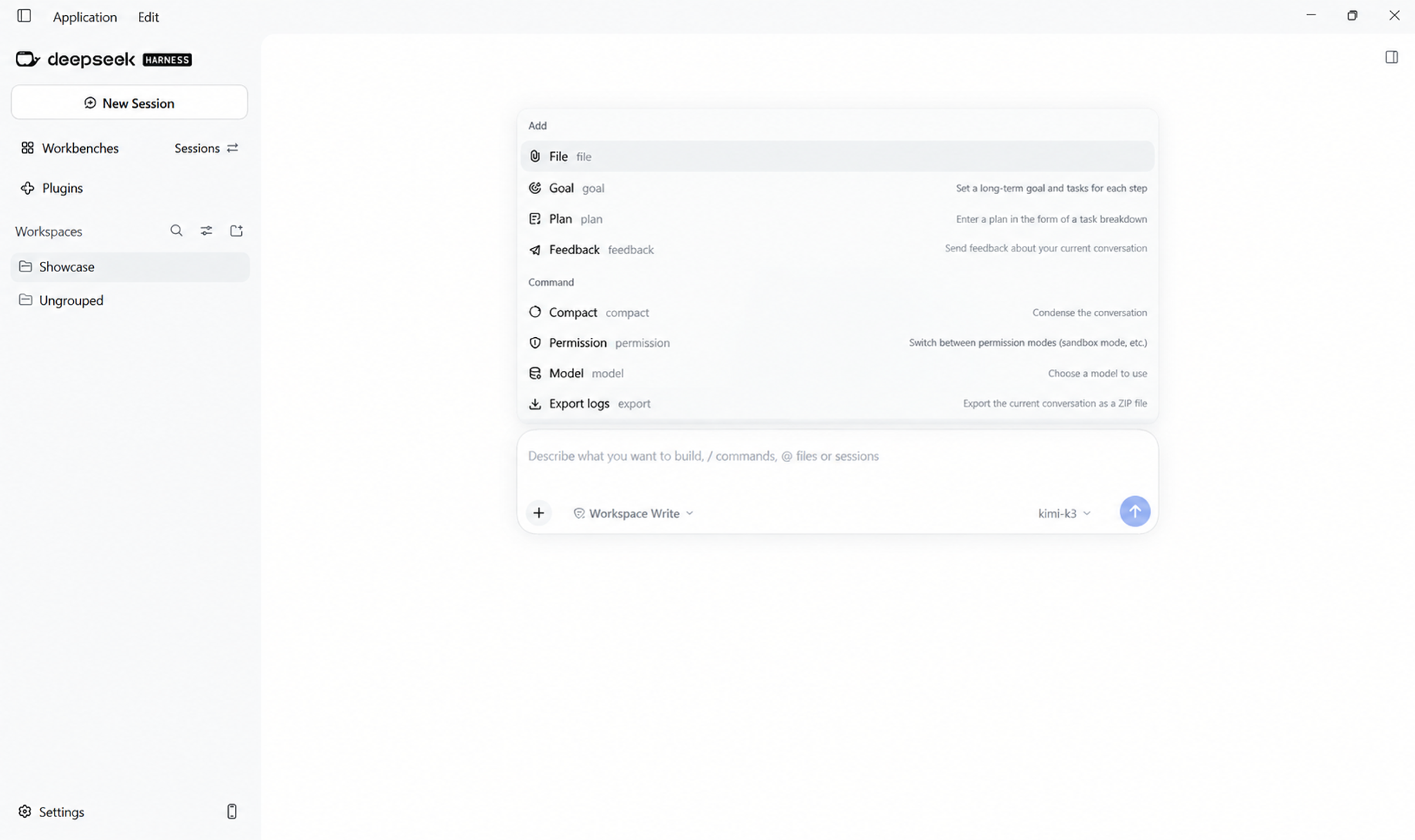
1. Click + and choose File
In a new or existing chat, click + at the lower left of the input box, then choose File.
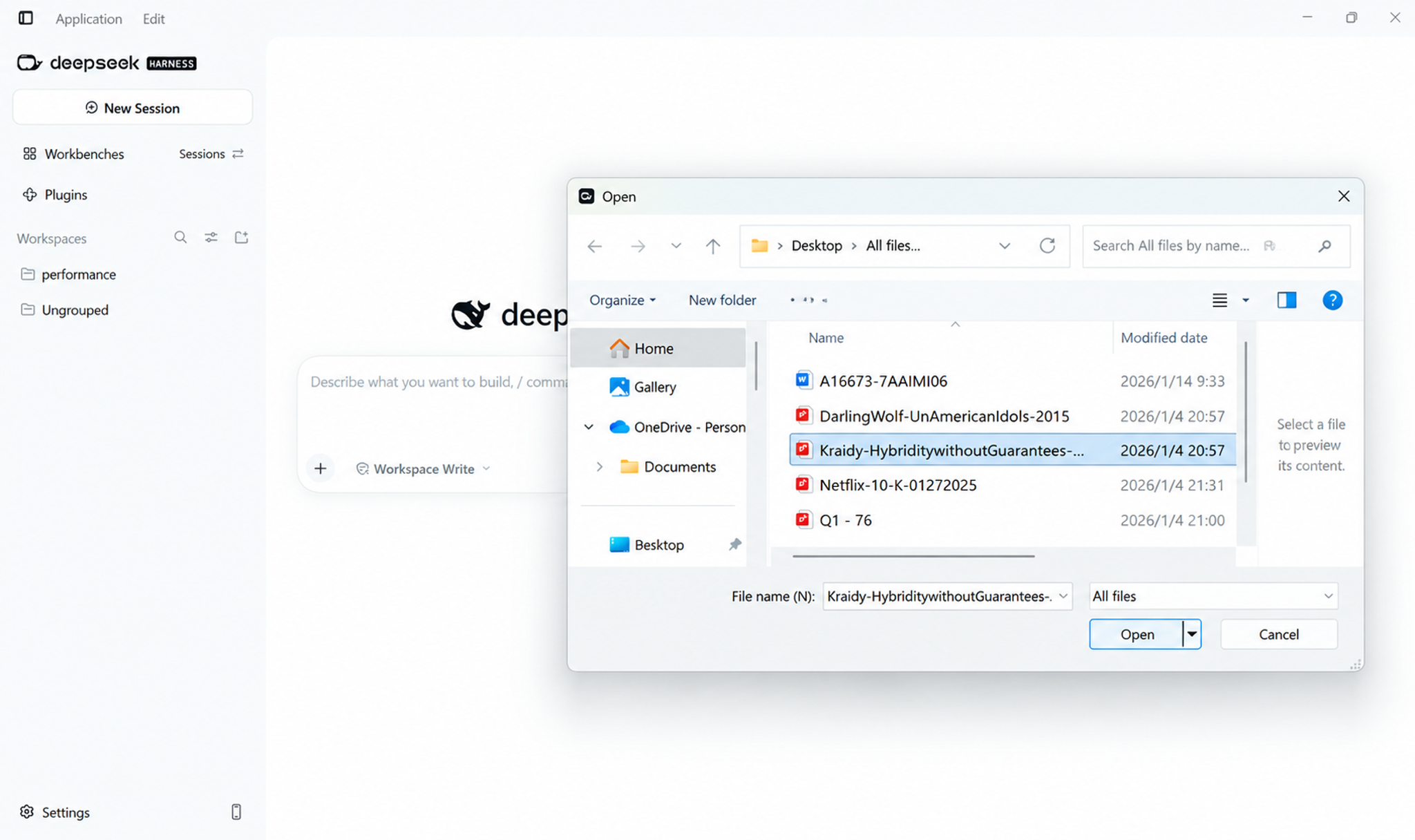
2. Choose the document
Find the document in the file picker, select it and click Open.
3. Check the filename and write your request
Back in the conversation, check the blue filename in the input box. Add your instructions below it and click Send.
Read the PDF I added and list five main points. Include a chapter or page number for each one, and tell me if any part cannot be read.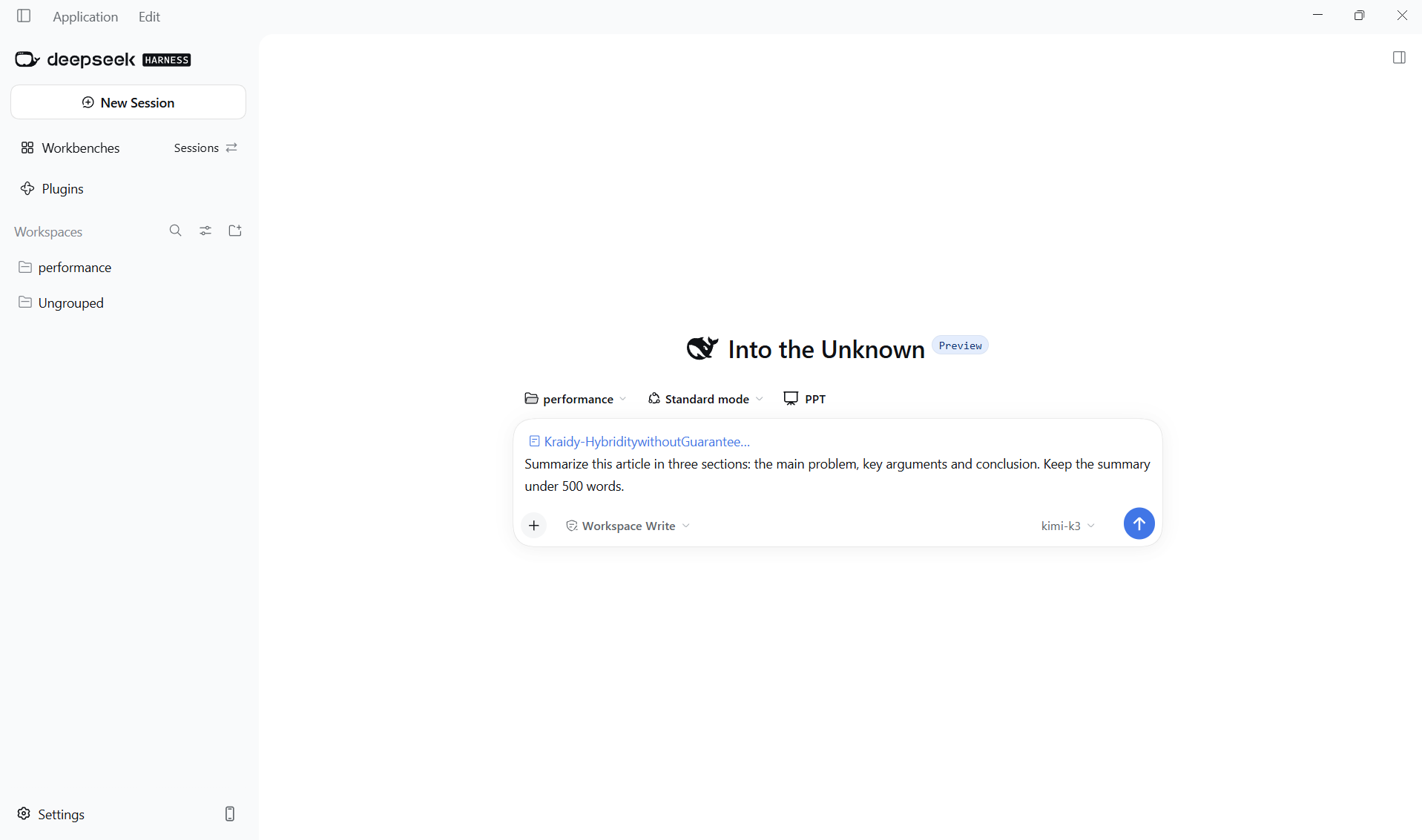
4. Check the reply against the original
Compare several important claims with the document. If a chapter was missed, ask for its main points. If the file cannot be read, resolve the reported problem and add it again.
How to confirm the file was read
First ask for the received filenames, document title and first three headings, without rewriting anything. Compare those with the original. For a spreadsheet, request sheet names, column names and the first five rows. For practice, use three fictional notes: “Product review on Monday; Lin prepares the design; budget not yet confirmed.” Ask for tasks, owners and unresolved questions. The budget must remain unconfirmed.