 DSH Desktop
Start your first conversation
Choose a workspace and model, send a request and refine the answer.
Before you start
Complete the installation and model connection guide first. You need an available model before sending a message.
1. Click New Session
Click New Session in the left sidebar. The input box appears in the center, with workspace and mode controls above it and the model selector at the lower right.
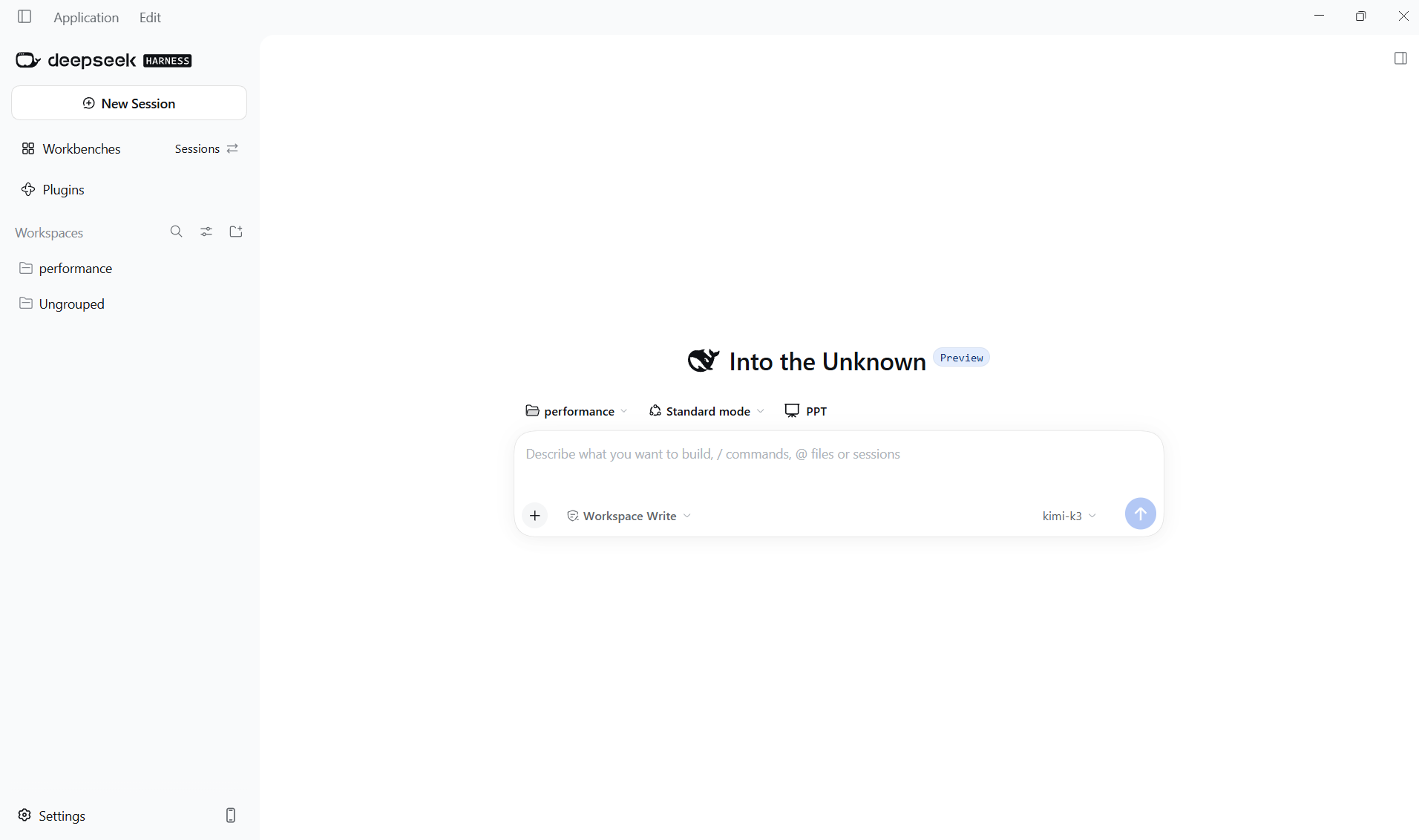
2. Choose a workspace
A workspace is the folder for this task. Click the folder name above the input box to select an existing workspace, or choose Add workspace… and select a folder. Keep files and conversations for the same task together. A separate practice folder is useful for your first try.
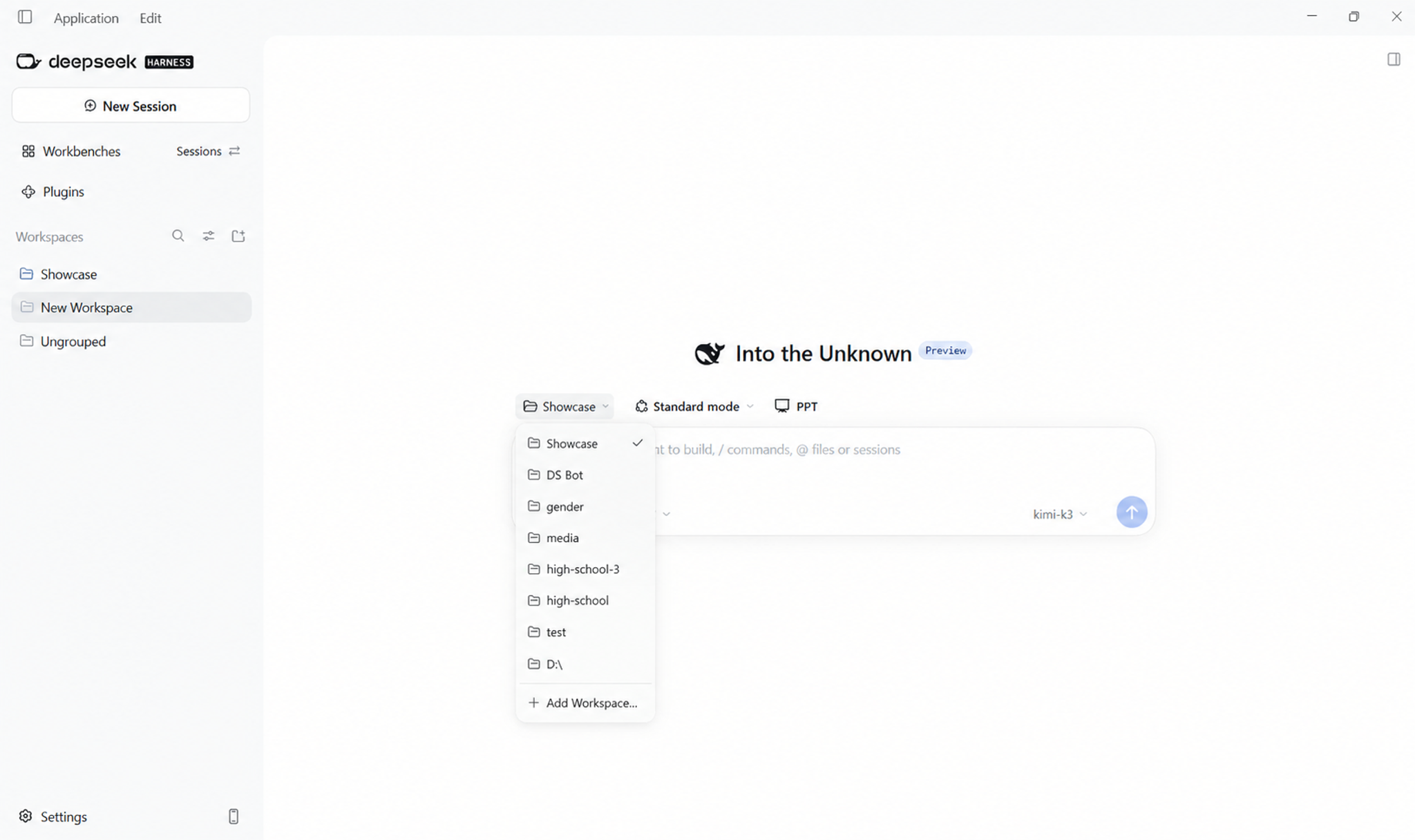
3. Select Standard mode and a model
Open the mode menu above the input box and select Standard mode. Keep this mode for your first conversation. Then select a configured model at the lower right.
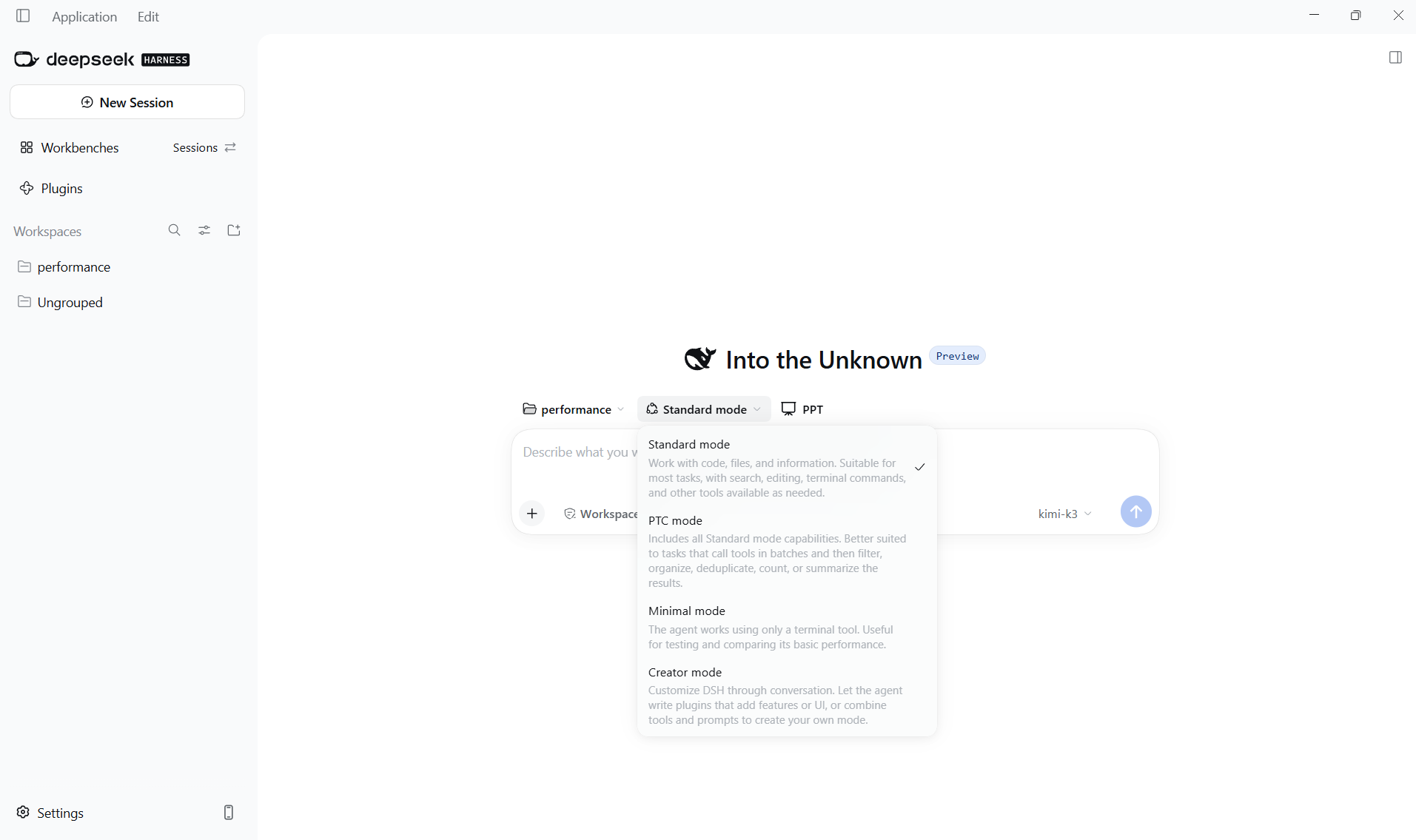
4. Send a request and follow up
Type your request and click the upward send arrow. When the answer arrives, continue in the same input box, for example: “Make the afternoon schedule shorter.” You do not need a new conversation for each revision.
Help me plan tomorrow: review customer feedback in the morning and prepare weekly meeting materials in the afternoon. List three to five tasks in time order.