 DSH Desktop
Install and connect a model
Connect a model provider, enter your API key and send a test message.
Before you start
Prepare an API key from your model provider. This key authorizes model requests; it is not a DSH Desktop password. Downloading the app and paying for model usage are separate.
1. Install the app and open model settings
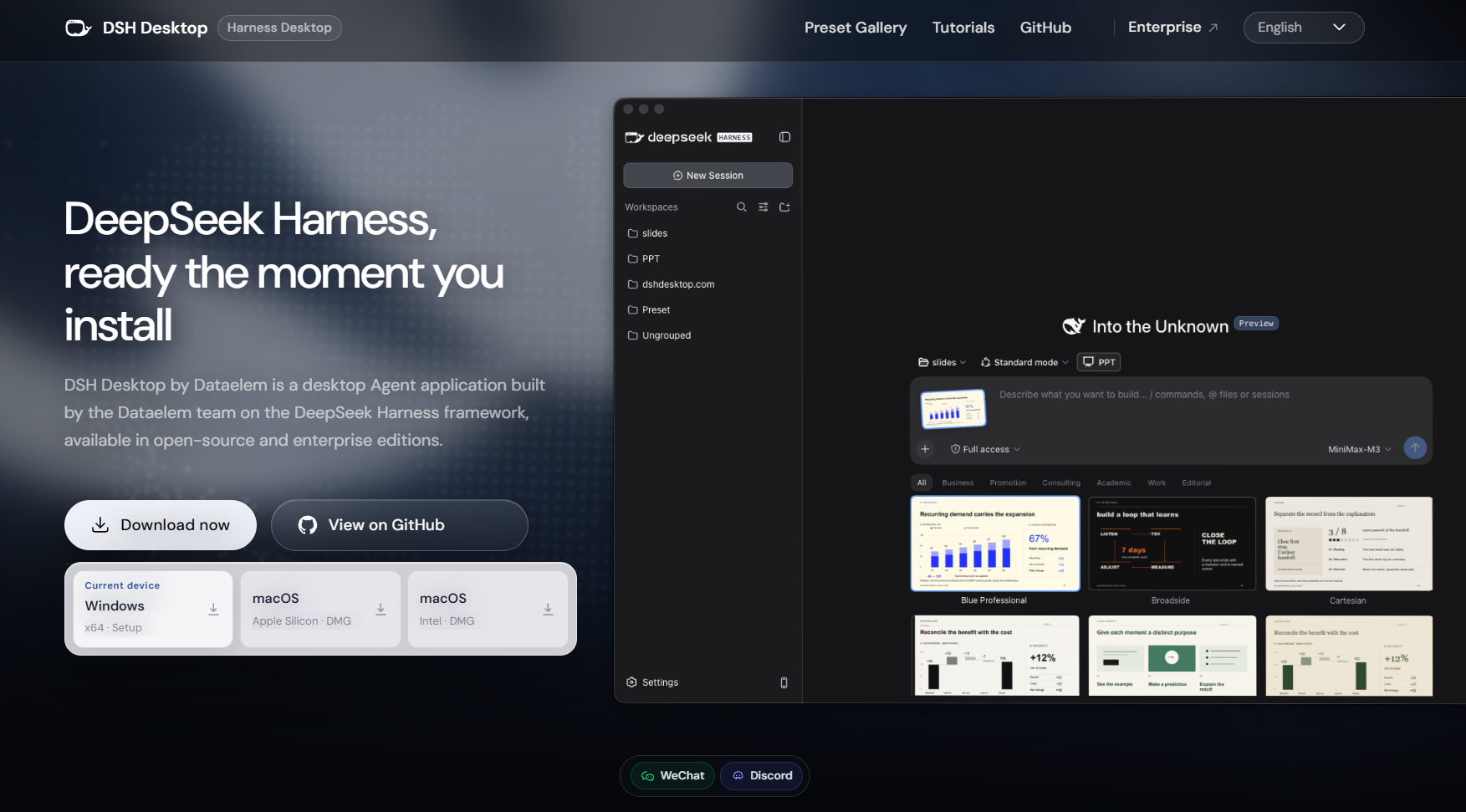
Choose the installer for your computer: Windows x64, or Apple silicon / Intel on Mac. Check About This Mac if you are unsure. Install and open DSH Desktop, then click Settings at the bottom left and open Models. Choose one of the following connection methods.
2. Use a listed provider
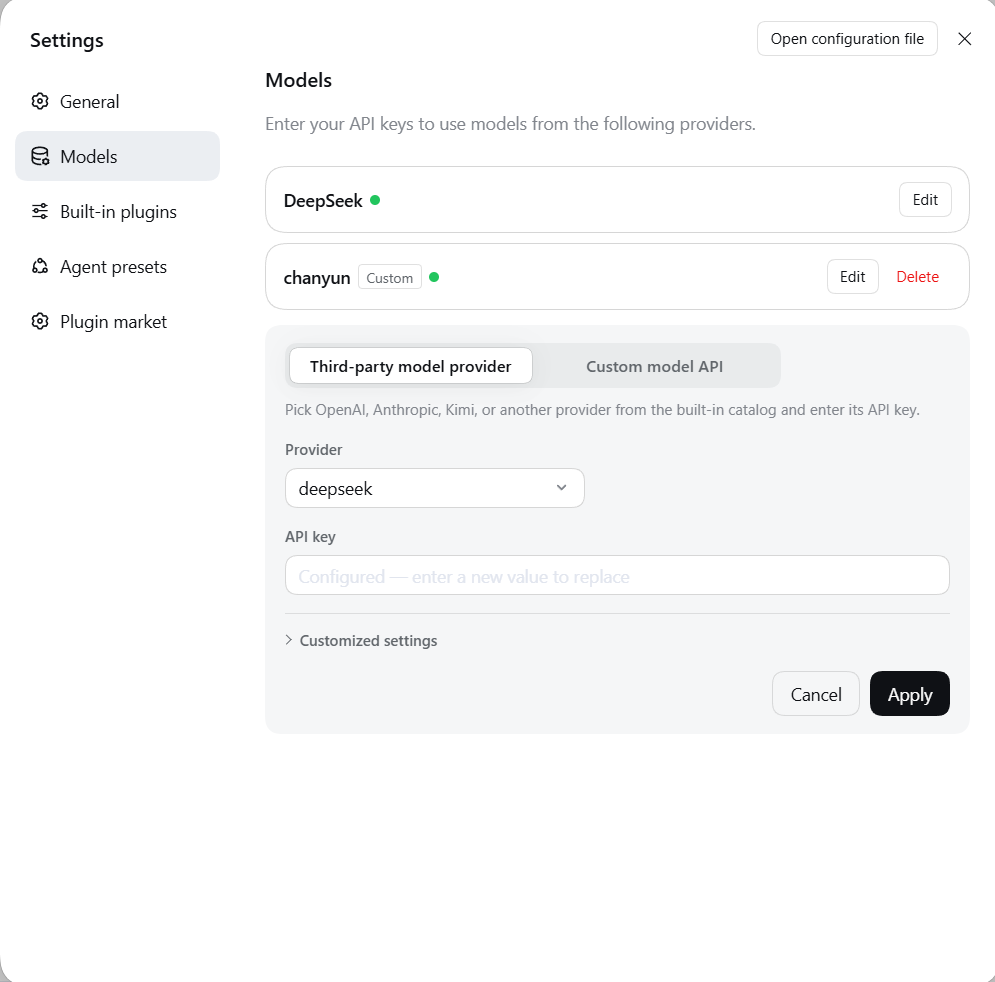
Choose Third-party model provider, select your provider, paste its API key and click Apply. If the field says a key is already configured, leave it alone or enter a new key to replace it. Do not paste the placeholder message into the field.
3. Or add a custom model API
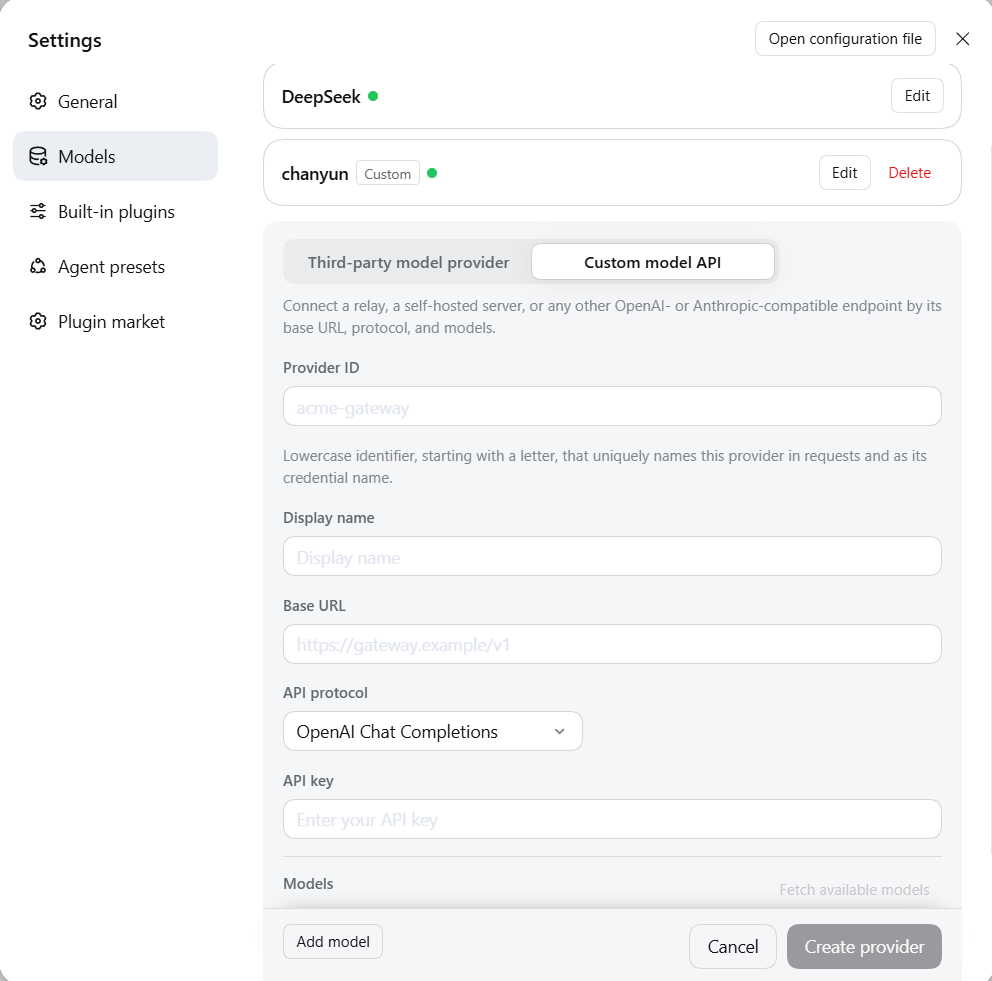
Choose Custom model API. Set a Provider ID beginning with a lowercase letter and a display name you recognize. Copy the Base URL, API protocol and API key from your provider’s instructions; do not copy the screenshot’s example address. Click Fetch available models, or Add model and enter the exact model ID supplied by the provider. Check the list and click Create provider.
4. Send a test message
Close Settings, click New Session and select the configured model at the lower right of the input box. Send the message below. A normal reply confirms that you can start using the connection. If it fails, check the provider, complete key and available balance. For a custom API, also check its URL, protocol and model ID. Keep keys out of chat messages and shared screenshots.
Hello. Please describe in one sentence what you can help me do.