 DSH Desktop
Install and use plugins
Find installation information, configure only what is required and test a small task.
Before you start
Open the description and installation instructions for the plugin you want. Plugin-specific usage follows its own documentation.
1. Copy the installation information
Use one supported input: the exact package name from the instructions, its GitHub repository URL, or the folder path of a plugin already downloaded to your computer. A translated display title is not a package name. If the author gives no installation information, ask for it.
2. Add and install the plugin
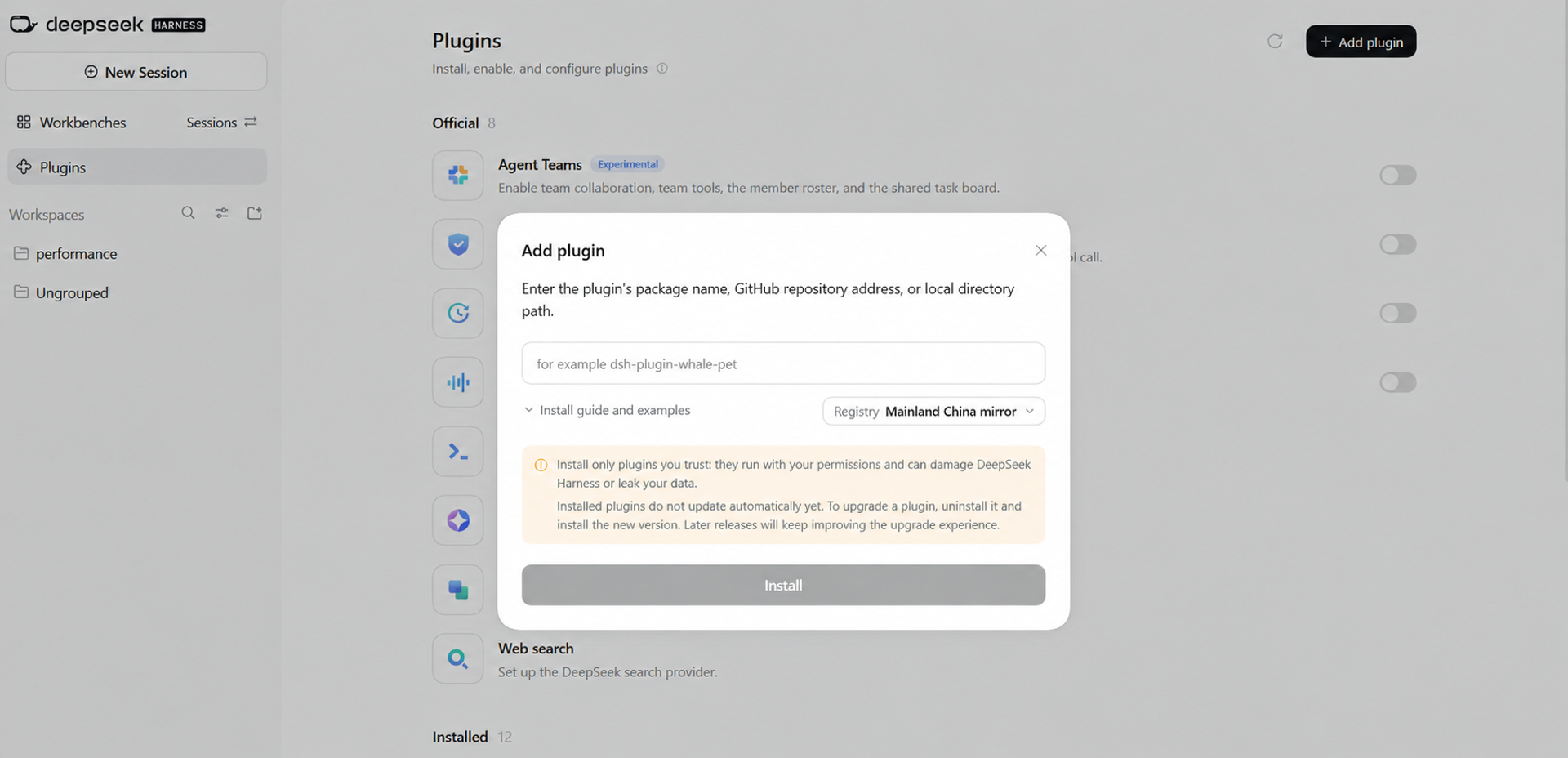
Click Plugins in the sidebar, then Add plugin at the upper right. Paste the package name, repository URL or local folder path. Keep the default installation source unless the plugin instructions say otherwise. Click Install and wait, then find it under Installed. Save your work before restarting if prompted.
3. Configure an account or key only if prompted
Some plugins work immediately; others ask for a service login or API key. Skip this step if no configuration is requested. Obtain the key from the service named in the plugin instructions and enter it in the specified field. It is not your DSH Desktop password or a key from an unrelated service.
4. Try one simple action
Find the feature using the plugin instructions. For a usage meter, send one AI message and check for a usage record. For a task board, create a small task and check that it starts. If installation or opening fails, send the author the plugin name, your steps and a screenshot of the error with keys concealed.